Designing a GA4 Custom Event Schema: Shifting from Vanity Metrics to Funnel Leakage
DATE: 2026-07-13
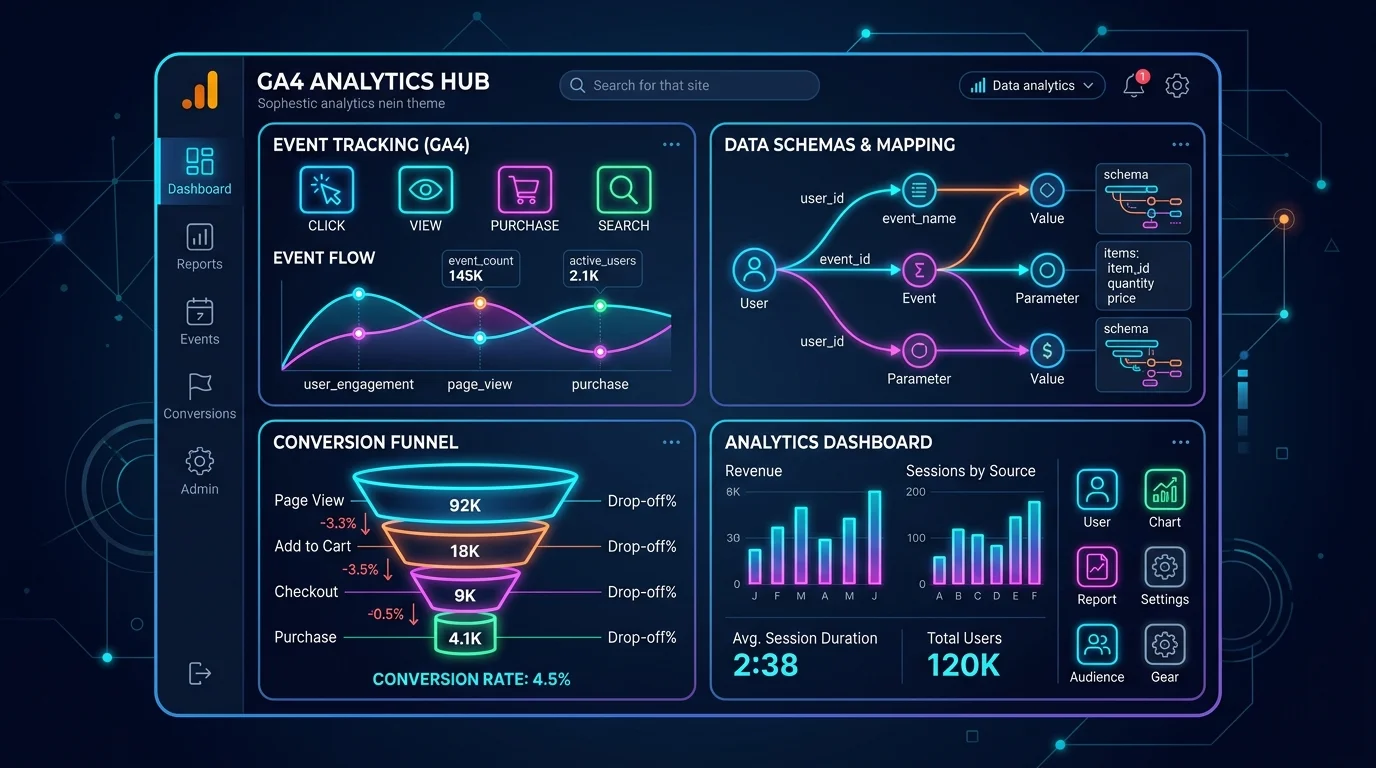
## The Shift to Event-Driven Analytics: Beyond Vanity Pageviews
If you're still auditing your digital acquisition performance based on raw pageviews, bounce rates, or generic "button clicks," you are operating with an obsolete mental model. When Google transitioned from Universal Analytics to Google Analytics 4 (GA4), they didn't just update the interface—they changed the underlying data model from session-based tracking to an event-driven architecture.
In Universal Analytics, a session was the container, and pageviews, transactions, and events were different types of hits inside it. In GA4, everything is an event, and every event can carry up to 25 custom parameters.
This architectural shift is a massive opportunity for growth engineers. Generic tracking configurations capture vanity metrics—high-level numbers that make marketing reports look good but hide where users are dropping out of the purchase sequence. To build a high-performance marketing pipeline, you must design a robust **GA4 Custom Event Taxonomy Architecture**. This means defining custom schemas that track micro-conversions, capture user intent, and identify precisely where **funnel leakage** occurs before it hurts your bottom line.

---
## The Core Problem: Standard Metrics vs. Funnel Leakage
Standard GA4 implementations rely on enhanced measurement events (like `click`, `scroll`, and `file_download`). While these out-of-the-box events are easy to enable, they lack the business context required for deep optimization.
For instance, the default `click` event fires for any outbound link click. It doesn't tell you if the user clicked your primary pricing call-to-action (CTA), or if they clicked a social media icon in the footer.
Without custom parameters, your conversion funnels are flat. You can see how many users visited the home page and how many checked out, but the intermediate steps—the micro-interactions where users get confused or lose interest—remain completely invisible.
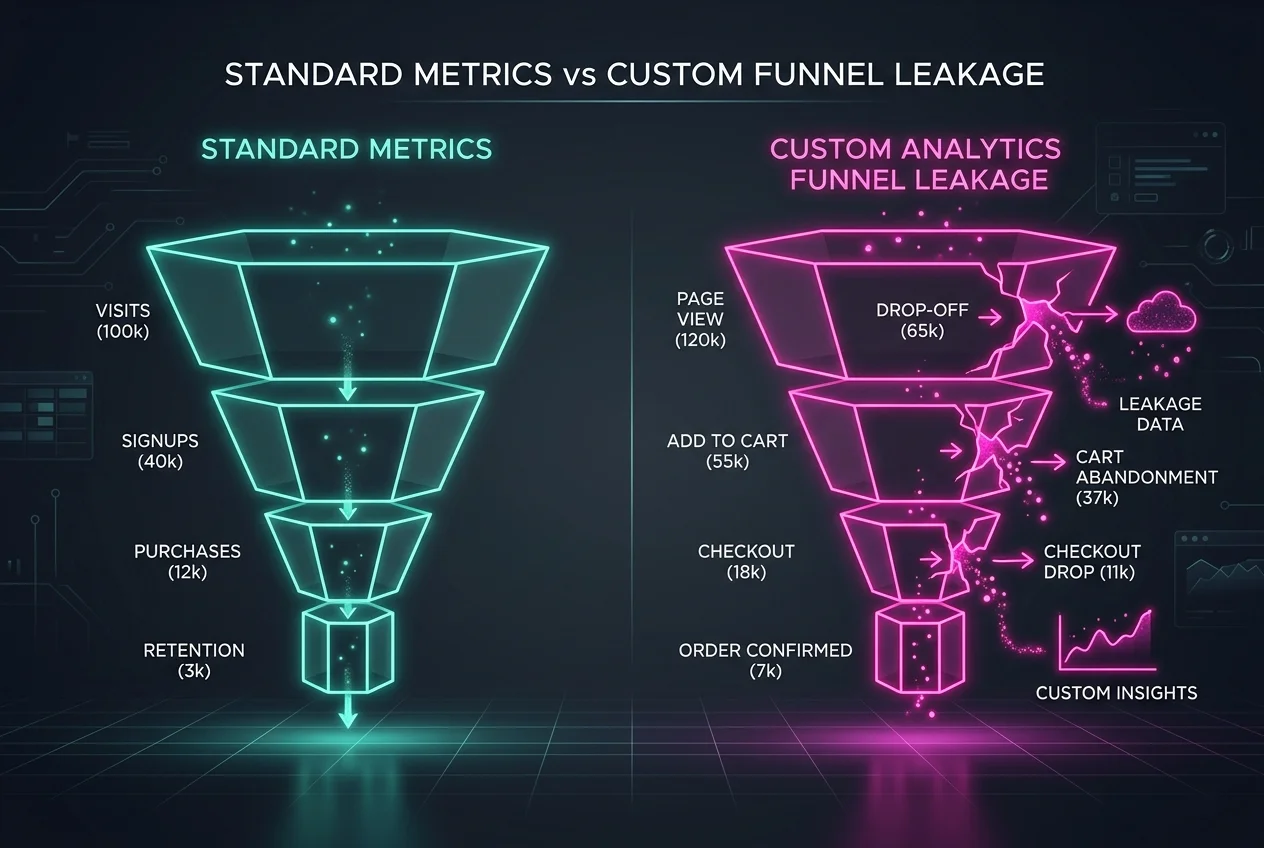
By transitioning to a custom event taxonomy, you can map out every phase of the customer journey and pinpoint exactly where users drop off:
* **Micro-Interaction Tracking:** Capturing specific events like `pricing_tier_selected` or `demo_video_watched` rather than general page views.
* **Error Event Ingestion:** Tracking validation errors on forms (e.g., `form_error`) to catch UX friction points immediately.
* **Leakage Spotting:** Measuring the drop-off rates between specific sequential actions to see where your conversion funnel is losing traffic.
If you want to see how I build custom tracking solutions, check out my [Projects and Case Studies](/projects).
---
## Designing a GA4 Custom Event Taxonomy Architecture
A high-quality event taxonomy must be standardized, clean, and strictly structured. If you let developers and marketers create event names ad-hoc, your analytics property will quickly turn into an unreadable mess.
Here are the structural rules I enforce for every GA4 event schema deployment:
### 1. Strict Naming Conventions
* Use **snake_case** for all event names and parameter names (e.g., `lead_form_submitted`, not `leadFormSubmitted` or `Lead-Form-Submitted`).
* Keep event names action-oriented, starting with the object and ending with the action (e.g., `proposal_downloaded`, `pricing_tab_clicked`).
### 2. GA4 API Parameter and Dimension Limits
GA4 enforces strict limitations on custom dimensions and metrics. You must design your schema with these constraints in mind:
* **Parameters per Event:** Max 25 custom parameters can be sent with a single event.
* **Custom Dimensions:** Max 50 user-scoped and event-scoped custom dimensions per standard GA4 property.
* **Custom Metrics:** Max 50 custom metrics per property.
| Metric / Scope | Standard GA4 Property Limits | 360 Enterprise Limits |
| :--- | :--- | :--- |
| **Event-Scoped Dimensions** | 50 | 125 |
| **User-Scoped Dimensions** | 25 | 100 |
| **Custom Metrics** | 50 | 125 |
| **Max Parameters per Event** | 25 | 25 |
---
## Technical Implementation: GTM Data Layer to GA4
To capture custom parameters reliably without breaking site performance, you should route events through a clean GTM Data Layer setup. This structure ensures that your front-end code remains isolated from your analytics tags.
Below is the data pipeline mapping user browser actions down to your GA4 reports:
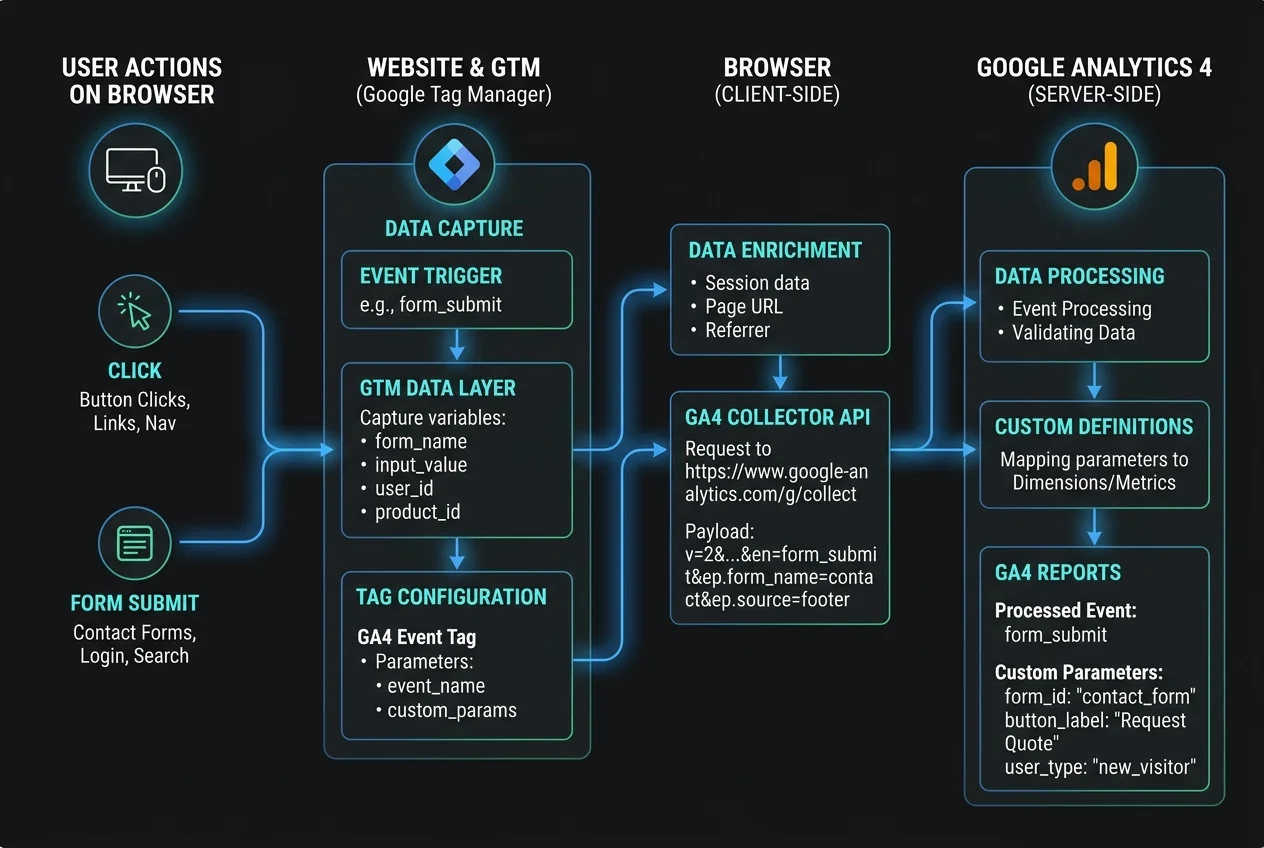
Here is a typical `dataLayer.push` structure I deploy for tracking lead generation form interactions:
```javascript
// Data Layer push for a custom lead submission event
window.dataLayer = window.dataLayer || [];
window.dataLayer.push({
event: 'lead_form_submitted',
event_id: 'lead_' + new Date().getTime() + '_' + Math.random().toString(36).substr(2, 9),
form_metadata: {
form_id: 'hero_b2b_demo',
form_name: 'Main Homepage Demo Request',
form_fields_count: 5,
user_type: 'prospective_client'
},
lead_details: {
inbound_source: 'google_ads',
industry: 'revops_saas',
company_size_range: '50-200'
}
});
```
Inside Google Tag Manager, you create variables to read these data layer keys (e.g., `form_metadata.form_name`) and map them as custom parameters in your GA4 Event tag.
---
## Debugging and Schema Validation in GA4
Once your data layer is firing, you must validate that the parameters are mapped correctly and that GA4 is receiving the data in the right format.
### 1. Utilizing GA4 DebugView
The most reliable way to test events in real-time is the **GA4 DebugView** tool:
1. Enable the GTM Preview mode, which automatically appends the `_dbg=1` parameter to your tag requests.
2. Open GA4 and navigate to **Admin** > **DebugView**.
3. Trigger the custom event on your site and verify that the event name and all associated parameters appear in the debug timeline within seconds.
### 2. Registering Custom Dimensions
Sending a parameter with an event is only the first step. To use that parameter in standard GA4 reports or custom explorations, you must register it as a **Custom Dimension**:
1. In GA4, go to **Admin** > **Custom Definitions** > **Custom Dimensions**.
2. Click **Create Custom Dimension**.
3. Input the **Dimension name** (user-friendly name, e.g., "Form Name").
4. Select the **Scope** (Event-scoped).
5. In the **Event parameter** dropdown, type or select the exact parameter name sent in your GTM tag (e.g., `form_name`).
6. Click **Save**.
Once registered, GA4 will begin populating this dimension within 24 hours, allowing you to build conversion path analyses and spot funnel leaks instantly.
---
## About the Author
I'm **Waleed Raza** — a Solutions Architect and Digital Growth Engineer specializing in server-side analytics pipelines, custom event schemas, and RevOps integrations. I run [StratDigi Pros](https://stratdigipros.com), a white-label technical execution agency, and I've built GA4 and sGTM infrastructures for startups, B2B SaaS companies, and global brands.
If your analytics setup is full of vanity metrics, or if you need to build a clean GA4 event schema to track funnel leakage — let's work together.
→ **[Hire me on Upwork](https://www.upwork.com/freelancers/waleedraxadigitalmarketing)** | **[Connect on LinkedIn](https://www.linkedin.com/in/waleed-raxa/)** | **[Submit a project request](/contact)**